Next.js Tutorials
Sitemap "Couldn't fetch"? Fix it in Next.js and WordPress
The 2-minute live test first, then the fixes for Next.js and WordPress


You submit your sitemap, open it in your browser, it looks perfect, and Search Console (Google's free dashboard for site owners) still says "Couldn't fetch". Below are the checks I ran today on my own site and on a small Next.js 16 test app, the two setup mistakes that really do break the fetch, and how to tell those apart from a message that will clear on its own.
What does "Couldn't fetch" mean for a sitemap?
"Couldn't fetch" means Google couldn't download your sitemap (the list of pages you want it to find), so it read none of its links. The cause may be on your side, like a redirect or a block in robots.txt (the file that tells crawlers what to skip), or on Google's side and clears by itself. A live test shows which.
A sitemap usually lives at /sitemap.xml. A redirect means the server sends Google to a different address. Crawlers are the programs Google uses to visit pages. Search Console's Sitemaps report shows one of three results for each file: "Success", "Has errors" or "Couldn't fetch".
Google's Sitemaps report help describes "Couldn't fetch" simply as "The sitemap could not be fetched for some reason." The same page lists the usual reasons: the file is blocked by robots.txt, the address is wrong and returns a 404 ("page not found") error, the site has an unresolved manual action (a penalty applied by a Google reviewer), a temporary problem, or "low crawl demand for the sitemap". That last one means Google simply didn't feel the need to fetch it yet.
The 2-minute check that tells you whose problem it is
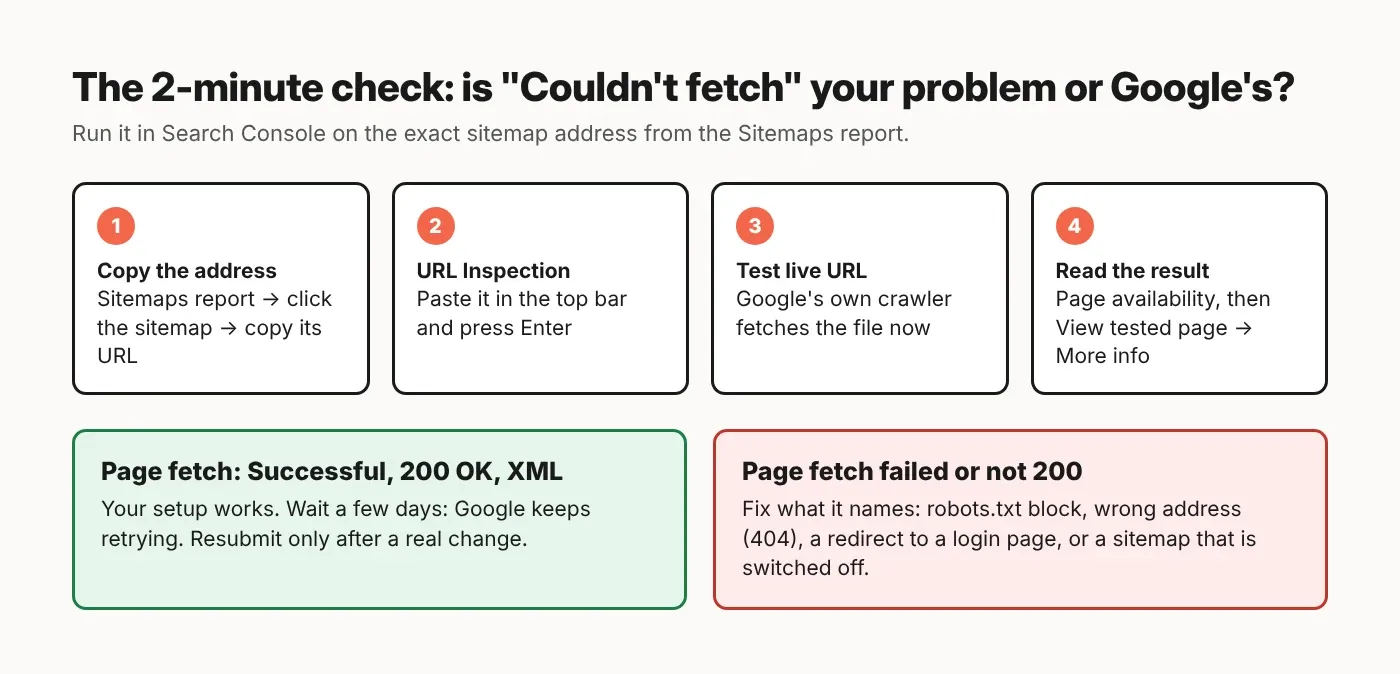
Before you change anything, ask Google itself to fetch the file. If the live test says the fetch worked, your setup is fine and you mostly need to wait.
This is the check Google's own help page recommends, and it's the only one that uses Google's crawler rather than your browser:
In Search Console, open Sitemaps and copy the exact sitemap address from the list.
Paste it into the URL Inspection bar at the top (URL Inspection is the tool that shows what Google sees at one address) and press Enter.
Click Test live URL.
Open Page availability. You want "Crawl allowed?" = Yes and "Page fetch" = Successful.
Click View tested page → More info. Check that the HTTP response is "200 OK" (200 is the status code a server sends when everything worked) and that the content type (the kind of file the server says it is) is XML, the text format sitemaps use.
If all of that passes and the report still says "Couldn't fetch", Google's help says to "wait a bit and see if Google continues to encounter this error in later crawl attempts". If the live test fails, the "Page fetch" line names the reason, and the sections below cover the common ones.
What I found when I tested my own sitemap today
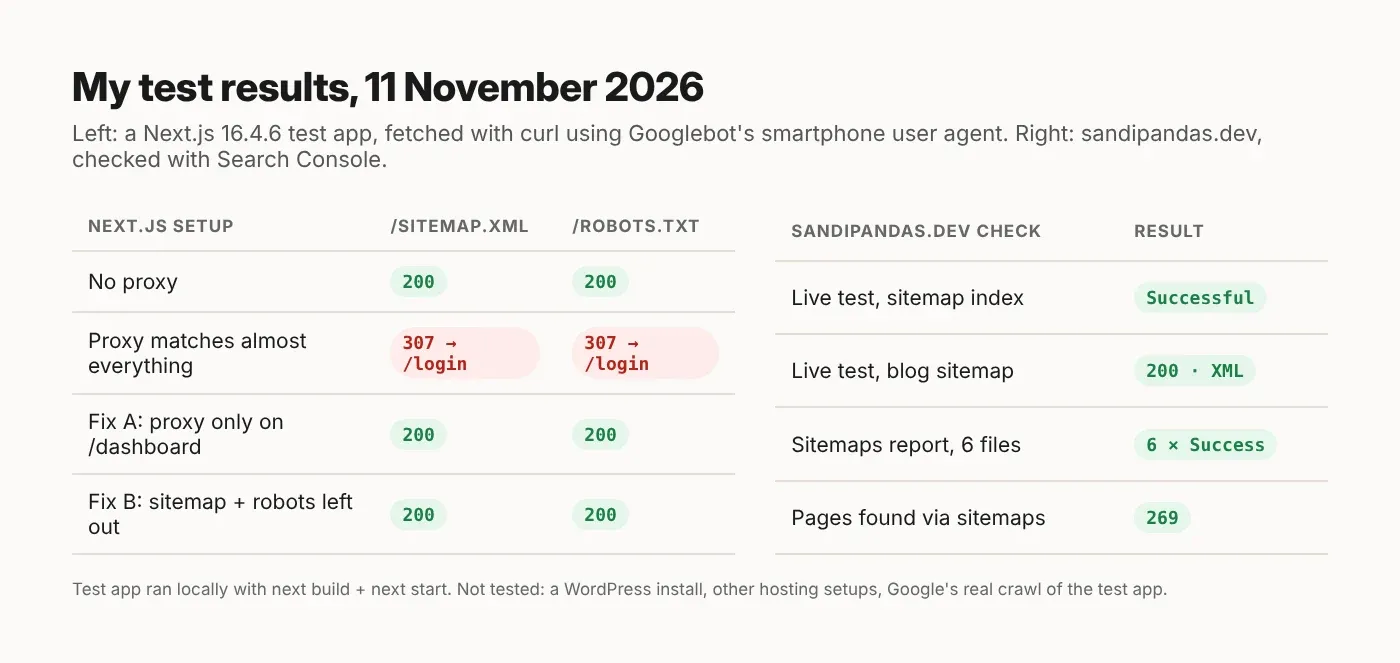
On 11 November 2026 I checked sandipandas.dev's sitemap index and all six of its child sitemaps. Google's live test fetched them without any problem, and the Sitemaps report shows "Success" for every file.
A sitemap index is a sitemap that lists other sitemaps instead of pages. Mine lists six: pages, blog, projects, services, compare and landing pages. Here's what I checked and how:
What I checked, and how | Result |
|---|---|
Can Google's crawler get the file? (URL Inspection live test, which fetched as Google Inspection Tool smartphone) | Index and blog sitemap: Page fetch Successful, 200 OK, XML file |
What the Sitemaps report says (index details page) | All 6 child sitemaps Success, 269 pages found |
Status code and file type of all 7 files (fetched in Chrome, redirects turned off) | All 7 sent 200 and an XML file, no redirect |
Size (links and bytes in each file) | Biggest file: 65 links, about 126 KB. Google's limit is 50,000 URLs or 50 MB uncompressed per sitemap |
robots.txt (read the live file) | Has a |
What I did not test: I didn't fetch my site with a fake Googlebot user agent (the name a crawler sends to identify itself), because my test machines are blocked from reaching the live site. The live test above is Google's own crawler, which matters more. I also only tested one site, so this shows the checks working, not how common each problem is.
One more detail: my sitemap index is on the www address, but the child sitemaps inside it are listed without www. My Search Console is a Domain property (it covers every version of the domain), and it still shows "Success". I still wouldn't copy that. One address everywhere is the safer habit.
Next.js: the proxy that sends Google to your login page
In Next.js, the cause I could show in a test is a proxy (code that runs before each request, called middleware before Next.js 16) whose matcher (the list of paths it runs on) also catches /sitemap.xml. Google asks for the sitemap and gets sent to /login instead.
The proxy lives in proxy.ts and can redirect any request it matches. Here's a login check with a "match almost everything" pattern:
// proxy.ts  (the broken version, Next.js 16.4.6)
import { NextResponse, type NextRequest } from 'next/server'

// Sends every visitor without a session cookie to /login.
// The matcher catches almost everything, including /sitemap.xml.
export function proxy(request: NextRequest) {
  const hasSession = request.cookies.has('session')
  if (!hasSession && request.nextUrl.pathname !== '/login') {
    return NextResponse.redirect(new URL('/login', request.url))
  }
  return NextResponse.next()
}

export const config = {
  matcher: ['/((?!_next/static|_next/image|favicon.ico).*)'],
}
Logged in, you never notice, because your browser has the session cookie. Google has no cookie. In my test app I sent requests with Googlebot's smartphone user agent using curl (a command-line tool that fetches a URL and shows the raw reply):
Setup | /sitemap.xml | /robots.txt |
|---|---|---|
No proxy | 200, XML | 200, text |
Broken proxy (above) | 307 redirect to /login | 307 redirect to /login |
Fix A: proxy only on /dashboard | 200, XML | 200, text |
Fix B: whole site, sitemap and robots left out | 200, XML | 200, text |
Google's help says plainly, about the sitemap address, "Redirects are not followed." So point the proxy only at the pages that really need a login:
// proxy.ts  (Fix A: only the members area needs a login)
import { NextResponse, type NextRequest } from 'next/server'

export function proxy(request: NextRequest) {
  const hasSession = request.cookies.has('session')
  if (!hasSession) {
    return NextResponse.redirect(new URL('/login', request.url))
  }
  return NextResponse.next()
}

export const config = {
  matcher: ['/dashboard/:path*'],
}
If the whole site really must sit behind a login (a staging site, for example), leave the crawler files out of the matcher instead. That was Fix B in my test:
// proxy.ts  (Fix B: only the config changes)
export const config = {
  matcher: [
    '/((?!_next/static|_next/image|favicon.ico|sitemap.xml|robots.txt).*)',
  ],
}
Next.js: build the sitemap with the built-in file, not by hand
Next.js can create /sitemap.xml and /robots.txt for you from two small files. Read your site address from one setting (an environment variable), so the sitemap can never point at the wrong domain.
The Next.js sitemap docs describe app/sitemap.ts as a special file that returns a list of URLs. By default its result is cached (saved and reused) unless it uses request-time data. Here's the setup I built and ran today (Next.js 16.4.6, React 19.3.1, TypeScript 7.0.2, strict mode, next build and tsc --noEmit both passed):
// lib/site.ts
// The one correct address of your site, e.g. https://www.yoursite.com
// Set NEXT_PUBLIC_SITE_URL in your hosting settings. No trailing slash.
const siteUrl = process.env.NEXT_PUBLIC_SITE_URL

if (!siteUrl) {
  throw new Error('NEXT_PUBLIC_SITE_URL is not set')
}

export const SITE_URL: string = siteUrl.replace(/\/$/, '')
// app/sitemap.ts
import type { MetadataRoute } from 'next'
import { SITE_URL } from '@/lib/site'
type Post = { slug: string; updatedAt: string }
// Replace with your real data source (CMS, database, files).
async function getPosts(): Promise<Post[]> {
return [
{ slug: 'hello-world', updatedAt: '2026-11-01' },
{ slug: 'second-post', updatedAt: '2026-11-10' },
]
}
export default async function sitemap(): Promise<MetadataRoute.Sitemap> {
const posts = await getPosts()
return [
{ url: SITE_URL },
{ url: `${SITE_URL}/blog` },
...posts.map((post) => ({
url: `${SITE_URL}/blog/${post.slug}`,
lastModified: post.updatedAt,
})),
]
}// app/robots.ts
import type { MetadataRoute } from 'next'
import { SITE_URL } from '@/lib/site'
export default function robots(): MetadataRoute.Robots {
return {
rules: { userAgent: '*', allow: '/', disallow: ['/dashboard/'] },
sitemap: `${SITE_URL}/sitemap.xml`,
}
}The site address comes from an environment variable (a setting stored on your server or hosting, not in the code). If it's missing, the build stops with "NEXT_PUBLIC_SITE_URL is not set". I tried that on purpose, and it's much better than quietly shipping a sitemap full of wrong links. The lastModified dates are placeholders here; use the real "last changed" date of each post. Google's guide says it only uses <lastmod> (the "last changed" date in the sitemap) when it's "consistently and verifiably accurate", and that it ignores <priority> and <changefreq>, so I left those out.
If you split a big sitemap with generateSitemaps (a Next.js function that makes several sitemap files), the docs say the files appear at addresses like /product/sitemap/1.xml. Submit each of those files in Search Console or list them in robots.txt, because /sitemap.xml won't list them for you.
WordPress: one checkbox can switch your sitemap off
On WordPress the cause that is easiest to miss is the "Discourage search engines from indexing this site" box under Settings → Reading. When it's ticked, WordPress turns off its own built-in sitemap, so the sitemap address Google was given stops working.
Since WordPress 5.5, core WordPress (without any plugin) makes a sitemap index at /wp-sitemap.xml and adds it to the robots.txt file it creates. The WordPress 5.5 announcement says that if you change the visibility setting to discourage search engines, "sitemaps will be disabled". The code agrees: WP_Sitemaps::sitemaps_enabled() reads that same setting (blog_public) before anything else.
That box is easy to forget when a site moves from staging (a private test copy of the site) to live. Google's help says a "General HTTP error" can also be caused by a 404, which is what a missing sitemap file usually returns. I couldn't run a WordPress test today, so this part is from the WordPress docs and code, not from my own test.
The other WordPress mix-up is submitting the wrong file. SEO plugins may make their own sitemap and switch the core one off. A WordPress core developer wrote that plugins like Yoast SEO "might be disabling" the core sitemap in favour of their own. So check which one your site actually serves:
Open
/wp-sitemap.xmlin a private browser window.Open your SEO plugin's sitemap page in its settings and copy the address it shows (for example
/sitemap_index.xml).Submit only the one that opens as XML, and remove the other from Search Console.
Run the live test from the first section on the address you kept.
If you've ticked through all of this and the sitemap still won't fetch, it may be worth a proper look. My team checks sitemaps, robots.txt and server replies in every website audit.
What's easy to get wrong
Most wasted time comes from testing in the wrong place or fixing a problem that isn't there.
Testing only in your own browser. You're logged in and Google isn't. Use the live test, or a private window at the very least.
Submitting the address that redirects. If your site uses www, submit the www sitemap. Submit https, not http.
Resubmitting every day. Google's help says that after a temporary error you generally "do not need to resubmit". Resubmit after you've fixed something.
Treating "Couldn't fetch" as proof your pages are broken. Google can still find your pages through links. A sitemap helps, but Google's guide calls submitting one "merely a hint".
Blocking the sitemap in robots.txt by accident. A rule like
Disallow: /*.xmlblocks your sitemap too.
If Google's live test can fetch your sitemap, your sitemap isn't broken. Fix what the live test shows, not what the report label suggests.
Read next
How to fix indexing problems: the five kinds of indexing problems in one place
Discovered – currently not indexed: when Google knows a page but hasn't crawled it
If you'd rather have someone do this
I've built websites since 2017, over 900 projects, and my team in Kolkata works on Next.js and WordPress sites every day. If your sitemap, robots.txt or indexing still won't behave, book a short call and we'll look at it with you.
Questions
Questions this post answers
How long does "Couldn't fetch" take to go away?
- Google doesn't give a fixed time. Its help says it will try to crawl a sitemap as soon as you submit it, and that it keeps retrying failed fetches "for a few days" before stopping. If the live test passes, give it a few days. If the error is still there after you've fixed something, resubmit once.
Is "Sitemap could not be read" the same as "Couldn't fetch"?
- Mostly, yes. Google's help for Search Console (Google's free dashboard for site owners) says that when you see "Sitemap could not be read" next to "Couldn't fetch", the fetch failed for one of the reasons the help page lists. Either way, run the live test (Google fetching the file right now) on the sitemap address and read the "Page fetch" line. It tells you the real reason.
Does "Couldn't fetch" stop my pages from being indexed?
- Not by itself. Being indexed means Google has added a page to its search results. Google finds pages through links as well as sitemaps, and its guide calls a sitemap "merely a hint". A sitemap that won't fetch may still slow down how fast Google finds new pages, especially on a new or small site with few links pointing to it.
Should I delete the sitemap and submit it again?
- Only after you've fixed a real problem. Google's help says that for a temporary error you generally "do not need to resubmit". It suggests resubmitting when you make big changes to a sitemap, and otherwise letting Google follow its normal crawl schedule. If a fetch keeps failing, fix the cause first, then resubmit.
Why does my Next.js sitemap work in the browser but not for Google?
- Your browser may have something Google doesn't, like a login cookie. That's the case I could show in a test: a proxy (code in proxy.ts, called middleware before Next.js 16, that runs before each request) that redirects visitors without a login sends Google to your login page. Check the proxy's matcher (the paths it runs on) and run the Search Console live test.